
Session Recordings
Usertopia's Chrome Extension captures user sessions as recordings. These recordings include DOM events (clicks, scrolls, inputs), network traffic (XHR/Fetch requests), and precise timestamps for every interaction. Once uploaded, recordings are stored in secure cloud storage and processed by AI to automatically generate comprehensive test suites.
Viewing Recordings
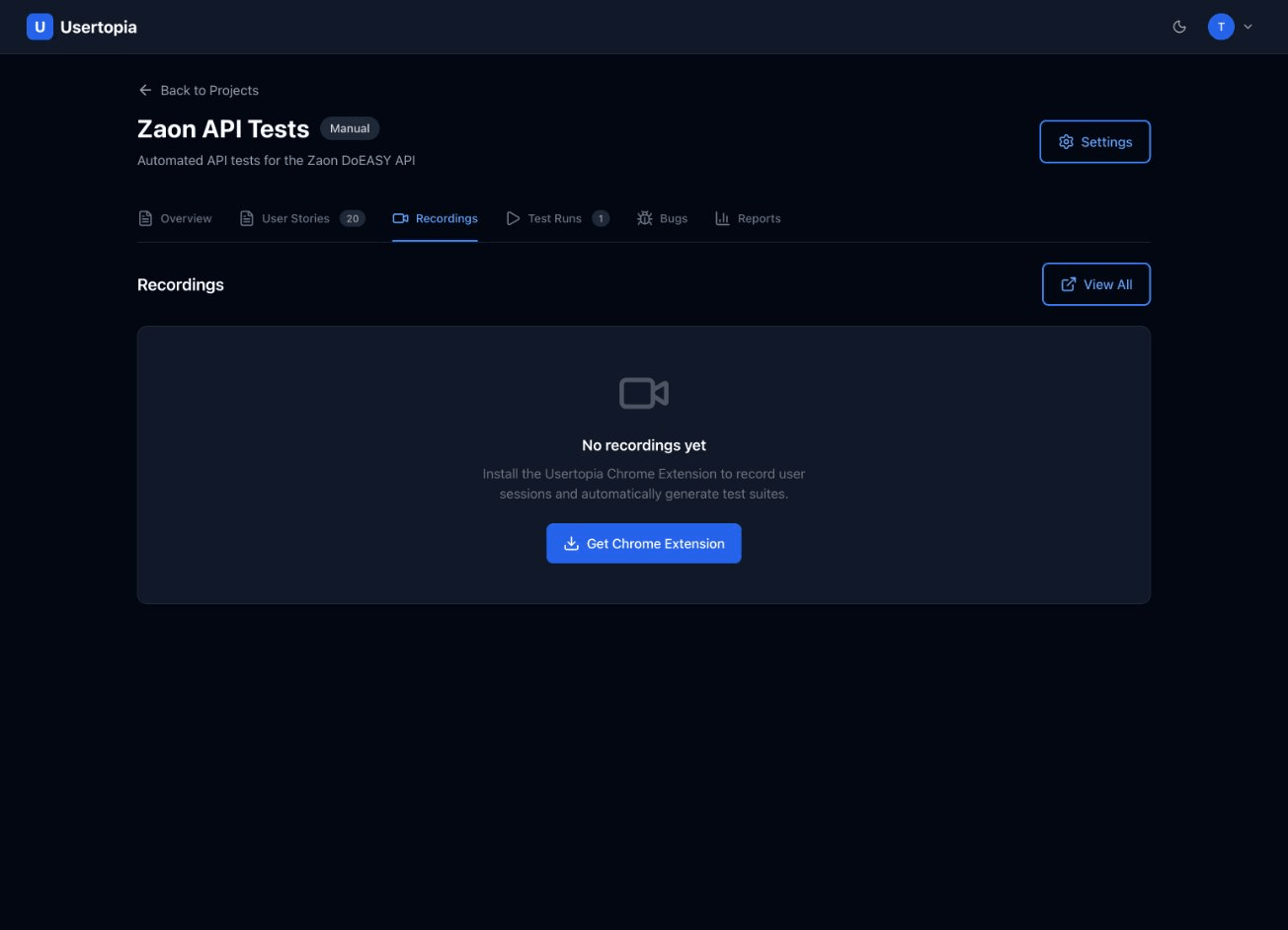
Navigate to your project's Recordings section to see all captured sessions. Each recording in the list displays key metadata at a glance:
- Session duration — total time of the recorded session
- Page count — number of distinct pages visited
- Event count — total number of captured interactions
- Status — current processing state of the recording
Click any recording to open its detailed replay view.
Recording Statuses
Each recording moves through several statuses during its lifecycle:
| Status | Description |
|---|---|
| uploading | Recording is being uploaded from the Chrome Extension to cloud storage. |
| processing | AI is analyzing the recording to extract test scenarios and user stories. |
| ready | Recording has been processed and user stories have been generated successfully. |
| failed | Processing encountered an error. You can retry by reprocessing the recording. |
Recording Detail
The recording detail view provides a comprehensive breakdown of everything captured during the session:
Full Timeline
A chronological timeline of every captured event with precise timestamps.
Network Requests
Every XHR/Fetch request with method, URL, status code, and timing information.
DOM Snapshots
Snapshots of the DOM at key interaction points, showing the page state at each step.
Generated User Stories
The user stories that were automatically derived from this recording's interaction flow.
From Recording to Tests
Recordings are the starting point of Usertopia's self-healing pipeline. This is the "Observe" phase of the self-healing loop.
AI Analysis
When a recording is processed, Usertopia AI analyzes the complete user flow including every click, form input, navigation, and network request.
Story Generation
The AI automatically generates user stories with tasks that match the recorded actions. Each story captures a distinct user intent from the session.
Review and Activate
You can review and edit the generated stories to fine-tune them, then activate them for use in your test suite.
Observe, Test, Heal
Recordings feed the "Observe" phase. Generated stories are executed in the "Test" phase. When tests fail, the "Heal" phase kicks in to automatically generate code fixes and submit pull requests.
Reprocessing
If the initial story generation didn't capture all interactions, or if you want to take advantage of updated AI models, you can reprocess any recording.
Click the "Reprocess" button on any recording's detail page. The recording will return to the processing status while the AI re-analyzes the session data. Existing stories from the previous analysis will be preserved, and new stories will be added alongside them.
Tip
Reprocessing is especially useful after Usertopia updates its AI models. Newer models may detect additional interaction patterns and edge cases that earlier versions missed.