
User Stories & Tasks
Define what to test with stories, and describe how to test it with ordered tasks.
Understanding User Stories
User stories are the core building block of testing in Usertopia. Each story defines what to test in your application and contains an ordered list of tasks (steps) that describe how to test it.
Stories can be created in three ways:
- Manually -- write stories and tasks by hand for full control
- From Recordings -- the Chrome Extension captures a session and AI converts it into test stories
- From Swagger / OpenAPI -- import a spec and let Usertopia auto-generate API test stories
Story Types
When creating a story you choose one of three types that determines how the test runner executes it.
Functional Test
Tests a specific user workflow end-to-end. Examples include completing a checkout, signing up for an account, or submitting a support ticket.
Visual Test
Uses AI Vision to check for visual regressions, layout issues, and UI inconsistencies. Captures screenshots and compares them against expected behaviour.
API Test
Sends HTTP requests directly to your API endpoints and validates status codes, response bodies, and schemas without a browser.
Creating a Story
To create a story manually, navigate to your project's User Stories section and click "Create Story". You can also click "Generate Stories" to use AI-powered generation.
Story Fields
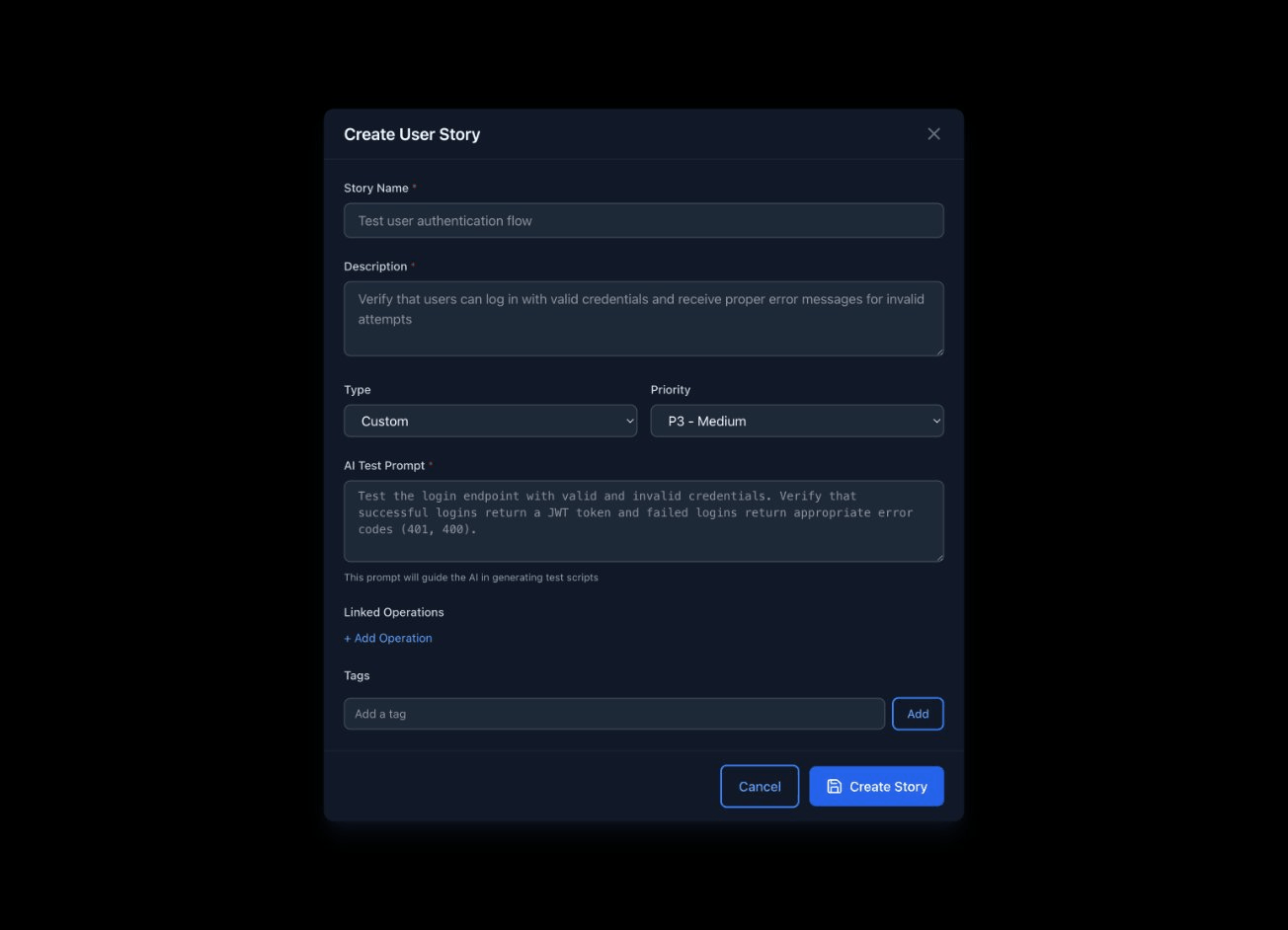
Managing Tasks
Tasks are the individual steps within a user story. They execute in order during a test run, and each task has a specific type that tells the test runner what action to perform.
Variable Chaining: Tasks can reference results from previous tasks using {{variable_name}} syntax. For example, an API call task might store a session token that a subsequent navigate task uses in its URL.
Task Types
Each task has one of the following types. The test runner interprets the type to decide which action to perform at that step.
| Type | Description |
|---|---|
| navigate | Open a URL in the browser |
| click | Click an element on the page |
| fill | Type text into an input field |
| assert | Verify a condition is true |
| api_call | Make an HTTP request |
| screenshot | Capture the current page state |
| wait | Pause execution for a duration |
AI Story Generation
Instead of writing every story by hand, you can let Usertopia's AI generate comprehensive test stories automatically. This works especially well when you have a Swagger specification or session recordings.
-
1
Open Generation
Navigate to your project's User Stories tab and click "Generate Stories".
-
2
AI Analysis
Usertopia analyzes your Swagger specification and/or session recordings to understand your application's capabilities and user flows.
-
3
Story Creation
The AI creates comprehensive test stories that cover critical user paths, edge cases, and error scenarios. Each story comes with pre-filled tasks.
-
4
Review & Activate
Review the generated stories, edit any details, and set them to Active when you are satisfied. Inactive stories remain in Draft status.
Tip: The more context you provide (Swagger spec, recordings, a detailed project description), the better the AI-generated stories will be.
Story Lifecycle
Every story progresses through a simple lifecycle that helps you manage which stories are included in test runs.
Draft
Being created or edited
Active
Included in test runs
Archived
Preserved for history
Draft -- the story is being written or refined. It will not be picked up by test runs.
Active -- the story is ready and will be included when you start a test run.
Archived -- the story is no longer active but its history and results are preserved for reference.